 PinballUX · Pi 5
PinballUX · Pi 5
PinballUX · Pi 5
PinballUX is a multi-monitor Linux frontend for Visual Pinball Standalone. This is a Raspberry Pi 5–optimized build, packaged as a single image you flash to an SD card.
Playfield, backglass and DMD on separate displays. Drop tables onto the cabinet over your network. No compiling, no desktop setup — flash, boot, play.
Based on the open-source PinballUX project,
this image bundles the frontend, Visual Pinball Standalone (OpenGL ES build), the table & media manager,
and every Pi-specific tweak needed to run smoothly — pre-configured on Debian 13 for the Pi 5.
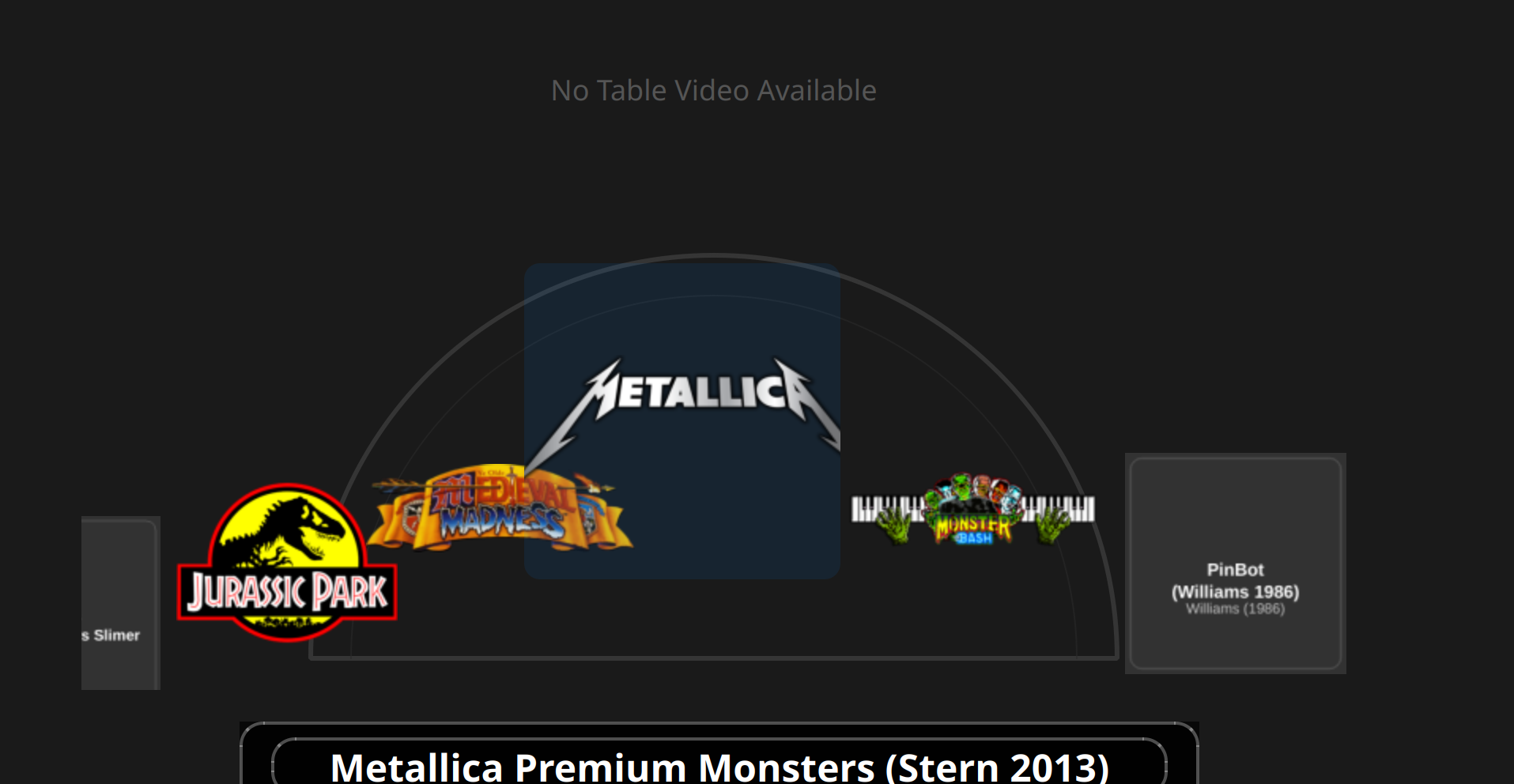
Start the app and you land in the table wheel; add your own .vpx tables and ROMs and you're playing.
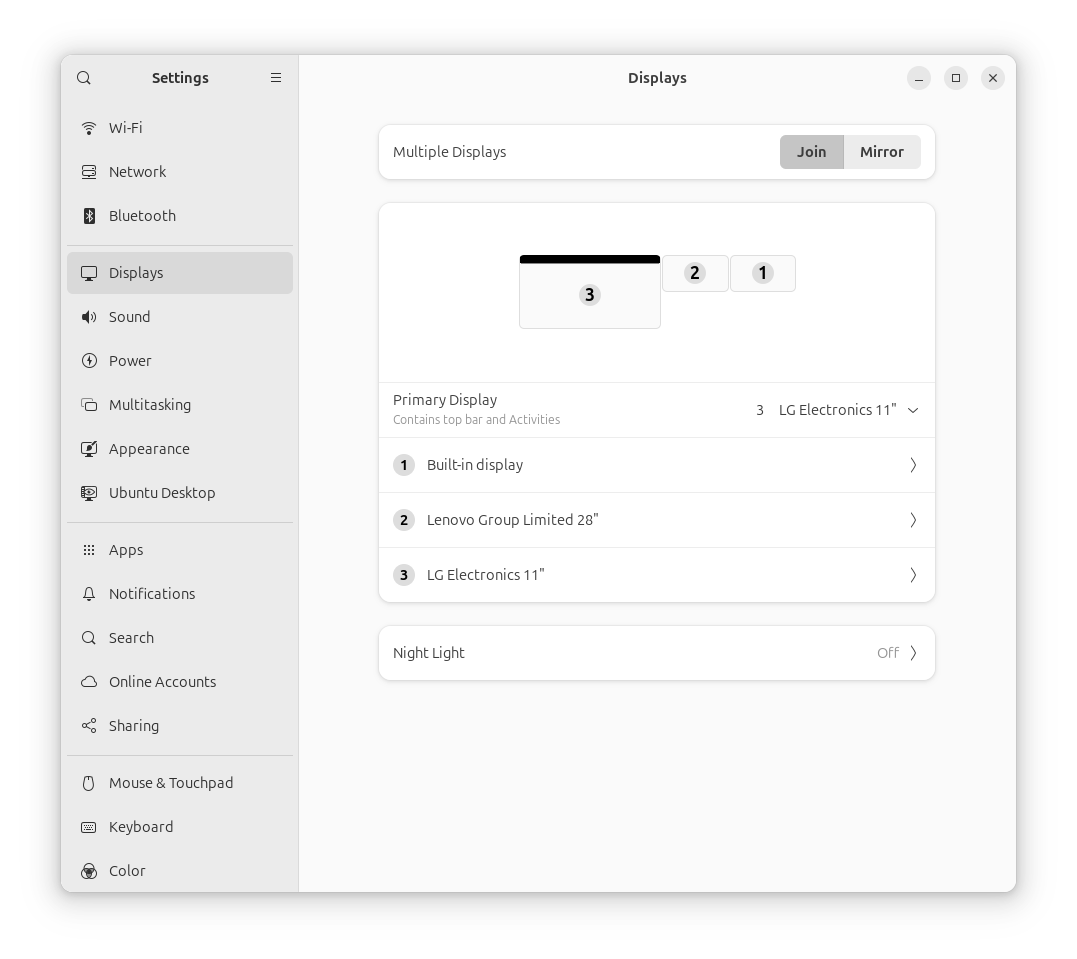
Supports 2 display Playfield, Backglass/DMD.
Map cabinet buttons for both wheel navigation and in-table play (flippers, plunger, MagnaSave, start).
Table preview videos, backglass and DMD playback, wheel art and per-table audio as you browse.
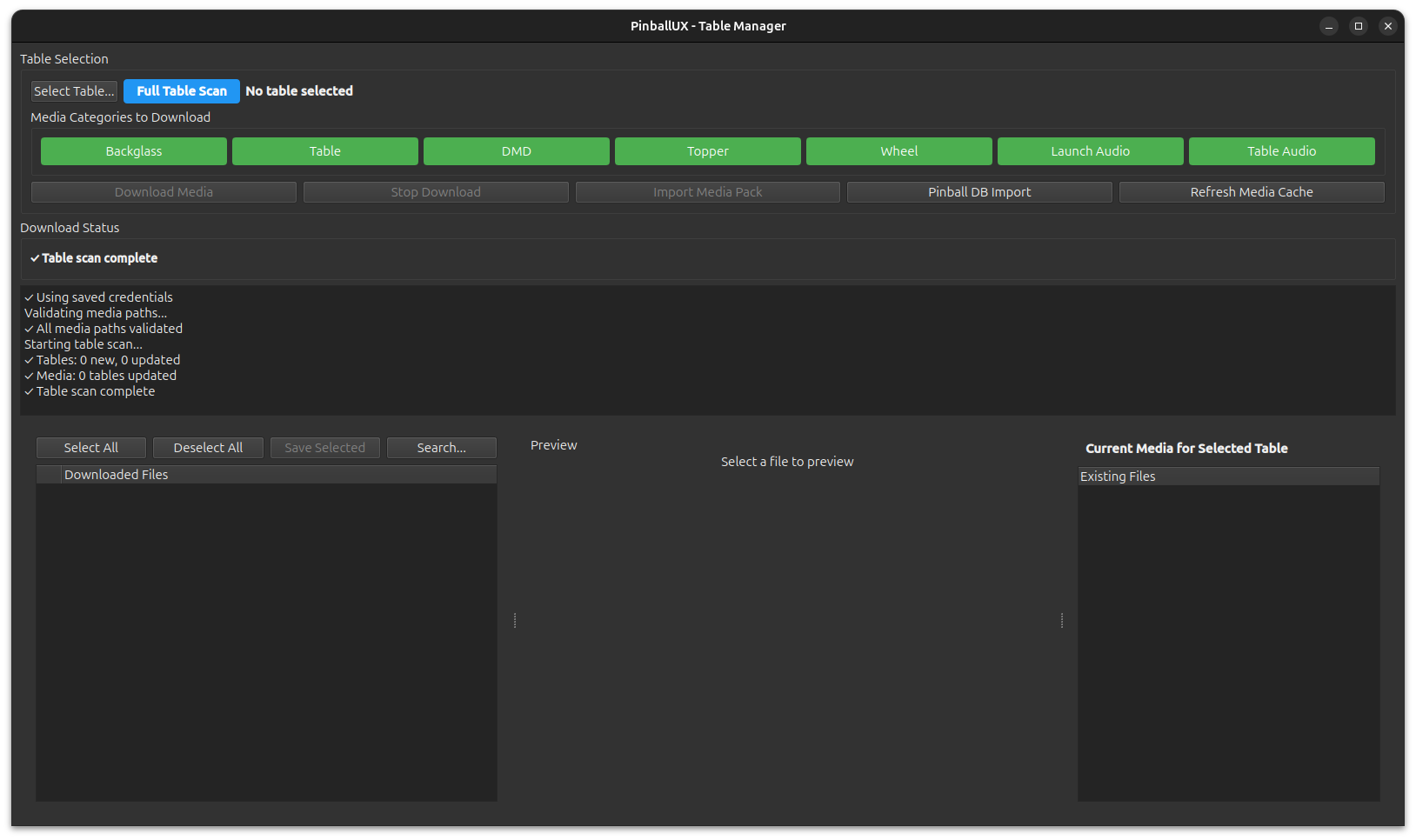
Scans tables, downloads media from ftp.gameex.com, imports HyperPin/PinballX media packs and metadata.
Samba shares mean you drag tables and ROMs straight onto the cabinet from any PC, Mac or phone — live instantly.
Software video decode, frontend suspend-during-play and XWayland window placement — see below.
The Pi 5 isn't a gaming PC, so this build works around its hardware honestly rather than fighting it. The notable changes baked into the image:
The Pi 5 has no H.264 hardware decoder. Qt's FFmpeg backend would try h264_v4l2m2m, fail, and hang the wheel — so video decode is forced to software, and previews just play.
While a table is playing, the frontend is frozen with SIGSTOP — timers, repaints and decode all stop — so VPinball gets the whole machine and its audio buffer never starves. The frontend resumes the instant you exit the table.
Under the Pi's labwc compositor a native-Wayland window can't choose its output. Both PinballUX and VPinball run under XWayland, which presents the monitors as one X screen so absolute positioning of playfield/backglass/DMD is honored.
The pointer is hidden across the whole X session — including over VPinball's separate window — for a true dedicated-cabinet look.
Pre-wired network shares (\\pinballwizard\Tables and \Roms) point straight at the live folders, so a file dropped from another machine is usable immediately — no copy/install step.
XZ-compressed Raspberry Pi 5 SD-card image. Decompresses to ~12 GB; flash to a 16 GB or larger card.
Exact size: 3,090,606,120 bytes — check this first if a download was interrupted. Verify after downloading: sha256sum -c PinballUX_RPI5.img.xz.sha256
The image expands the root filesystem to fill your card automatically on first boot.
Easiest: Raspberry Pi Imager → Use custom → select PinballUX_RPI5.img.xz (it decompresses on the fly). Or from a terminal:
# replace /dev/sdX with your card — double-check with lsblk!
xzcat PinballUX_RPI5.img.xz | sudo dd of=/dev/sdX bs=4M conv=fsync status=progressInsert the card, connect your displays and power up. Hostname is pinballwizard, the cabinet account is pinballux.
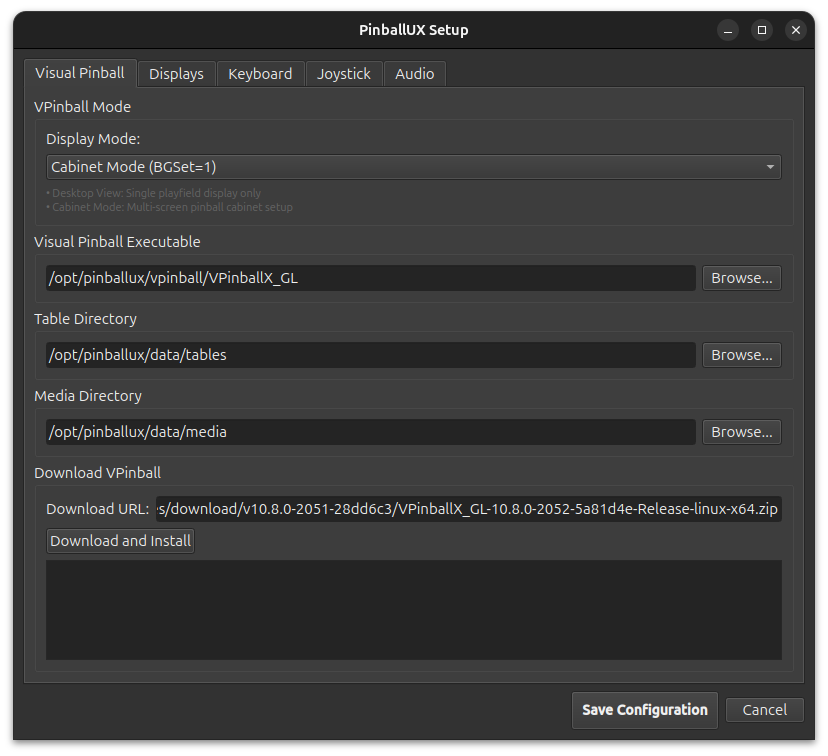
Launch PinballUX Setup to assign each display type to a screen number, set rotations, and map your keyboard/joystick. Settings save to ~/.config/pinballux/config.json.
From any PC/Mac/phone on the same network, drop .vpx tables and PinMAME .zip ROMs straight onto the cabinet:
\\pinballwizard\Tables   # .vpx / .directb2s
\\pinballwizard\Roms     # PinMAME .zip ROMs
Then open Table Manager to scan the new tables and download matching media (backglass, DMD, wheel art, videos, audio).
| Hardware | Raspberry Pi 5 (4 GB+ recommended) |
| Operating system | Debian GNU/Linux 13 (trixie), labwc / Wayland desktop session |
| Frontend | PinballUX 0.6.0 (PyQt6) — multi-monitor wheel, media, input handling |
| Pinball engine | Visual Pinball Standalone (VPinballX_GL, OpenGL ES build) |
| Storage | 16 GB+ SD card (A2-class recommended); root filesystem auto-expands on first boot |
| Displays | Up to 3 roles/ 2 Displays — Playfield, Backglass, DMD |
| Networking | Samba shares for Tables & ROMs; Table Manager downloads media from ftp.gameex.com |
| Default identity | hostname pinballwizard · user pinballux · default password: pinballer |
| License | MIT (PinballUX). Visual Pinball is distributed under its own terms. |
pinballux:pinballer account password and set a Samba password (sudo smbpasswd -a pinballux) before putting the cabinet on an untrusted network.